🌍 United States
|
💰 $ USD
Select Currency
₩ KRW - Korean Won
$ USD - US Dollar
€ EUR - Euro
£ GBP - British Pound
¥ JPY - Japanese Yen
A$ AUD - Australian Dollar
C$ CAD - Canadian Dollar
S$ SGD - Singapore Dollar
zł PLN - Polish Zloty
kr SEK - Swedish Krona
kr NOK - Norwegian Krone
kr DKK - Danish Krone
| |
📏 inch, pt
Select Unit
mm, g
inch, pt
mm
g
Upload File
Only 1 file can be uploaded.
Please compress multiple files.
File Name File Size
Upload File

Drag file here or
click to upload.

Business Cards > Offset Printing > Standard Paper Business Card

Paper color may differ from monitor display.
Material Guide ×
재질 이미지
Size
  • Trim Size
  • Width
  •  x 
  • Height
  • in
  • Edit Size
  • Width
  •  x 
  • Height
  • in
Paper
Print Color
Quantity
  • sheets
  •  x 
  • types
Select Coating
Finishing
Ship Date Est. shipping is 3-5 business days from proof approval.
Finishing adds 1-3 days to shipping.

We strive to meet estimated dates, but delays may occur.
Before You Order!
Color
1. Printed colors appear darker and duller than on screen.
Printing uses CMYK inks mixed together, so colors cannot match your screen exactly.
Spot colors or RGB files will be auto-converted to CMYK, which may change your intended colors.
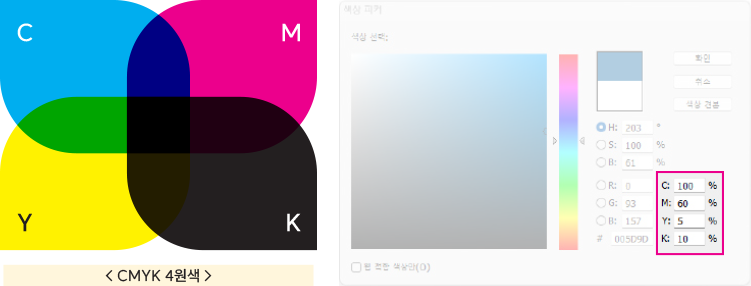
CMYK 4원색
When multiple orders are printed together, colors may vary between Cyan, Magenta, Yellow, and Black.
  • Same file may print differently depending on paper type and print timing.
  • Printing multiple orders together makes exact color matching difficult.
  • Large dark backgrounds may show roller marks, causing uneven color.
  • Front and back may print in slightly different colors even with identical design.
  • For exact colors, please attach a printed sample or contact us for custom printing.
  • Products printed together: Business cards, Tags, Coupons, Leaflets, Stickers, Envelopes, Flyers
2. Similar color values may print very differently.
Small differences in CMYK values can result in noticeably different colors. We evaluate colors based on your submitted file, not the printed result.
Color variation example:
Color variation example: C=61%, M=52%, Y=52%, K=22%
3. Pure black (K=100%) shows background colors through it.
To prevent this, add 1% of another color to black, or use K=99%.
100% Black (shows through)
< 100% Black (shows through) >
100% Black (solid)
< 100% Black (solid) >
Rich Black (C30% + M30%)
< Rich Black (C30% + M30%) >
< Black Ink Examples >
4. Patterns need enough contrast with the background to be visible.
Low contrast patterns may disappear or look muddy. Use at least 20-30% color difference for mixed colors, more for solid colors.
10% Color Difference
< 10% Color Difference >
20%+ Color Difference
< 20%+ Color Difference >
< Pattern Visibility >
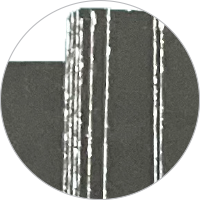
5. Thin text and lines in mixed colors may look blurry.
  • Colors may spread or misalign slightly. This is more visible with thin text or lines.
  • On dark mixed-color backgrounds, thin elements may break up or disappear.
  • For black text/lines, use pure black (K=100%) only, not mixed colors.
  • Very thin text or lines may not print properly even in solid colors.
6. Keep total CMYK ink under 250% to avoid smearing.
  • High ink coverage increases risk of ink transferring to other pages.
  • Pages may stick together or ink may peel off.
  • For darker colors, increase the Black (K) percentage instead of other colors.
  • Smearing can occur even under 250% depending on paper type.
  • Very high ink coverage may look muddy black or show roller marks.
Cutting
Cutting may be off by ±1-3mm (0.039-0.118 inch).
  • Cutting many sheets at once may cause slight shifting.
  • Keep important content at least 3mm (0.118 inch) from edges. (Total: Width -6mm, Height -6mm)
    For catalogs and pamphlets, use at least 5mm (0.197 inch) margins. (Total: Width -10mm, Height -10mm)
  • Borders and symmetrical designs may not be perfectly centered due to shifting.
  • Cuts may be slightly diagonal due to shifting.
Double-sided colored backgrounds (Business cards)
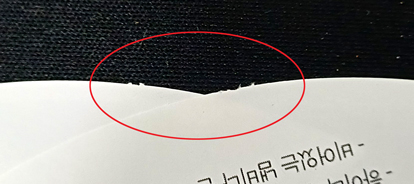
  • The back color may chip at edges during cutting; we'll trim slightly to remove chips.
  • For single-sided color, place the colored side as the front.
Finishing
Finishing processes may be off by ±1-2mm (0.039-0.079 inch).
Quantity
You may receive about 5% fewer than ordered when printed with other orders.
  • Products printed together: Business cards, Tags, Coupons, Leaflets, Stickers, Envelopes, Flyers
  • Adding finishing options may increase shortage due to extra waste.
  • If you need exact quantities, order extra or request custom printing.
Cancellation & Refund
Custom-made products cannot be refunded for change of mind.
Before proof work
  • Full refund available
Before production
  • Please contact customer service.
  • Full refund for print-only orders
  • Design fees are non-refundable
Before shipping
  • Only shipping fee is refundable
Software Setup Guide
InDesign InDesign
Document Size
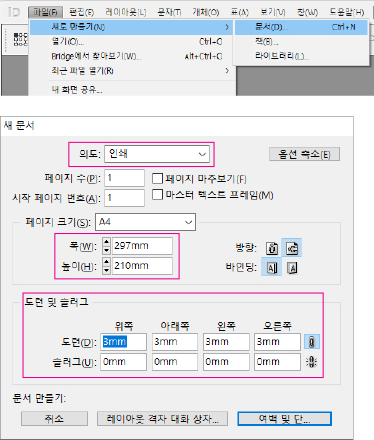
Create a new document and set the size for your print product. Set the trim size as page size, and configure the bleed for design size.
File → New → Document (Ctrl+N)
Intent: Print | Page Size: A4 (210×297mm) | Bleed: 3mm (all sides) | Slug: 0mm
Document Size
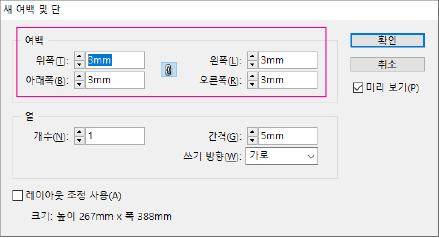
Margin Settings
Set up safety margins to keep important content from being cut off. Use 3mm for small items (business cards, tags, coupons) and 5mm or more for larger items (flyers, pamphlets, catalogs).
Layout → Margins and Columns
Margins: 3mm (all sides)
Margin Settings
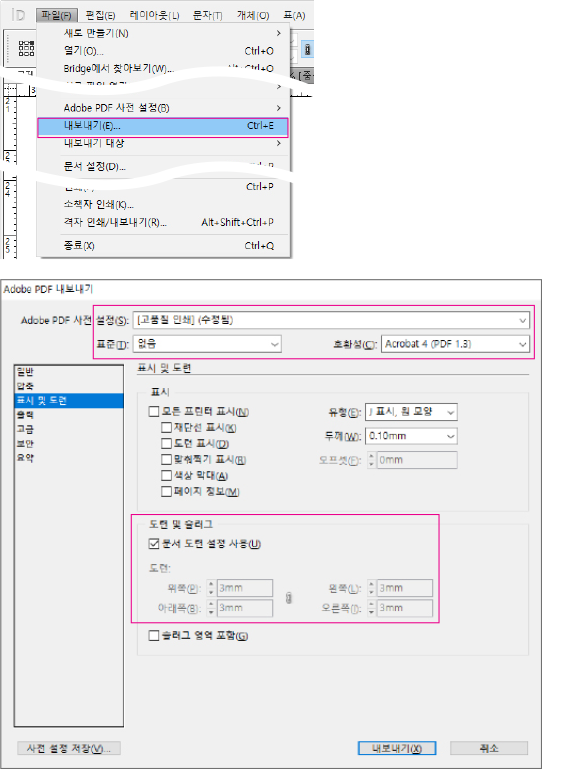
PDF Export
After completing your design, export as PDF with the following settings.
File → Export (Ctrl+E)
Format: Adobe PDF (Print) | Preset: PDF/X-4:2008 | Marks and Bleeds: Use Document Bleed Settings
PDF Export
Illustrator Illustrator
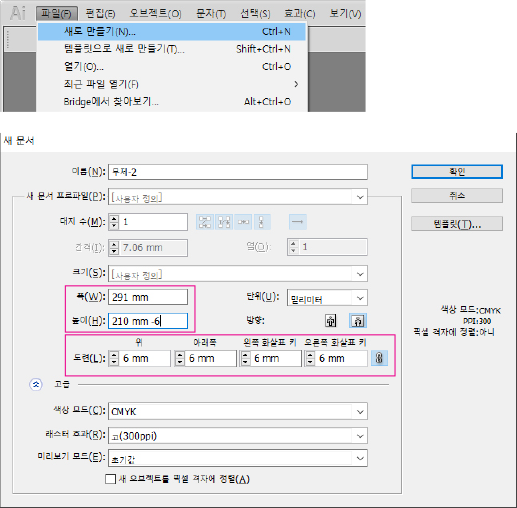
Document Size
Create a new document and set the size for your print product. Set width and height based on safety zone size. Add 3mm to each side for trim size (if using 3mm safety zone). Add 6mm for bleed (accounting for the 3mm safety zone). Use 3mm for small items and 5mm or more for larger items.
File → New (Ctrl+N)
Width: 297mm, Height: 210mm + 6mm | Bleed: 6mm (all sides) | Color Mode: CMYK | Raster Effects: High (300 ppi)
Document Size
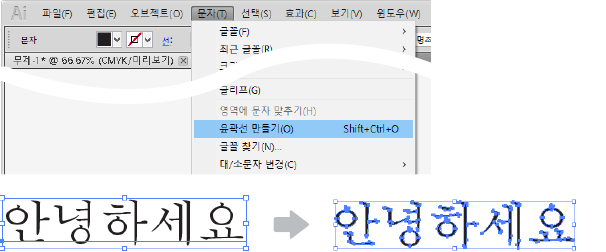
Convert Text to Outlines
All fonts must be converted to outlines.
Type → Create Outlines (Shift+Ctrl+O)
Convert Text to Outlines
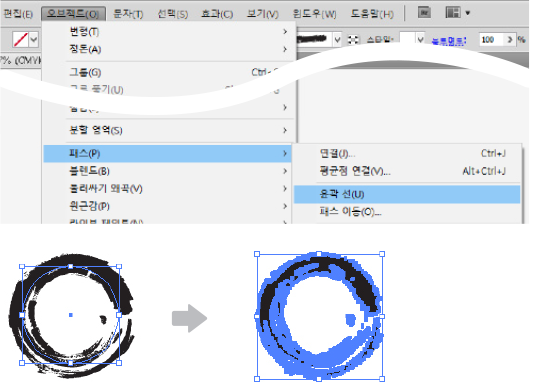
Convert Strokes to Outlines
All strokes must be converted to outlined paths.
Object → Path → Outline Stroke
Convert Strokes to Outlines
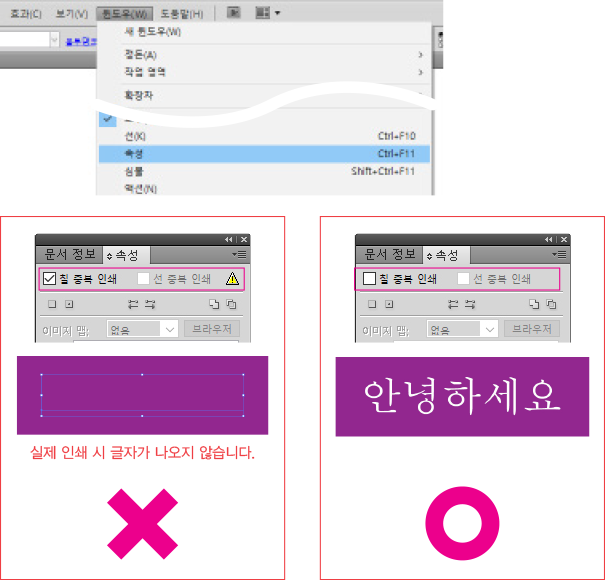
Overprint Settings
Make sure to turn off overprint for both fill and stroke.
Window → Attributes (Ctrl+F11)
Overprint Fill: unchecked | Overprint Stroke: unchecked
Overprint Settings
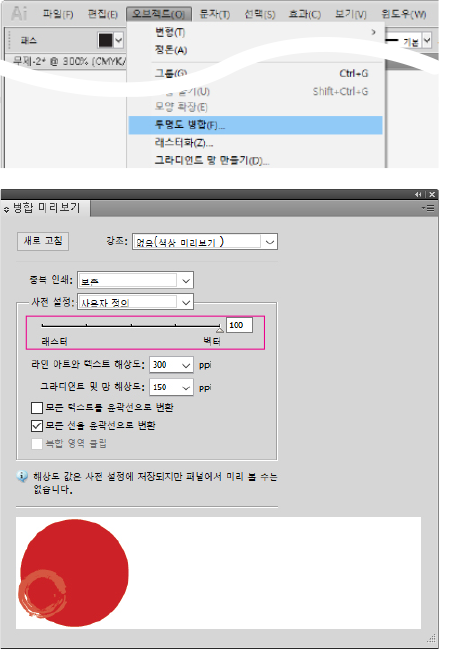
Flatten Transparency
Objects using transparency effects must be flattened (Vector 100%).
Object → Flatten Transparency
Raster/Vector Balance: 100 (Vector) | Line Art and Text Resolution: 300 ppi | Gradient and Mesh Resolution: 150 ppi | Convert All Strokes to Outlines: checked
Flatten Transparency
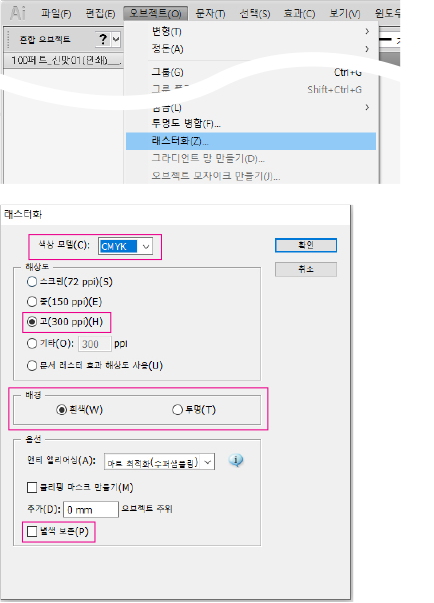
Rasterize Effects
Gradients, transparency, and other effects must be rasterized (converted to image).
Object → Rasterize
Color Model: CMYK | Resolution: High (300 ppi) | Background: White / Transparent
Rasterize Effects
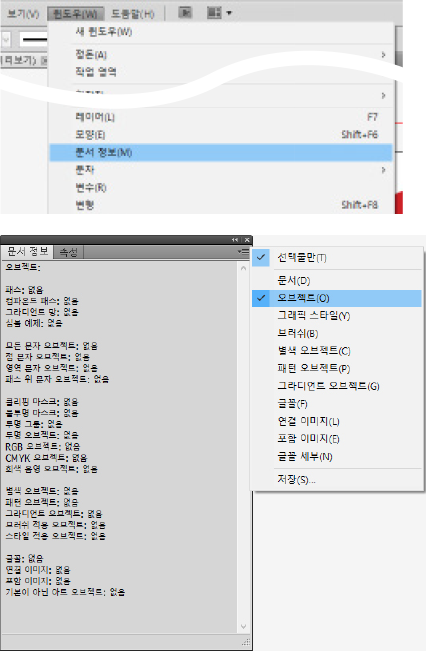
Check Document Info
Use Document Info to check for potential print issues. Click Objects in the panel menu. Items should show 'None' to avoid errors. If numbers appear, find and fix those objects using the methods above.
Window → Document Info
Panel menu (☰) → Objects
Check Document Info
Photoshop Photoshop
Document Size
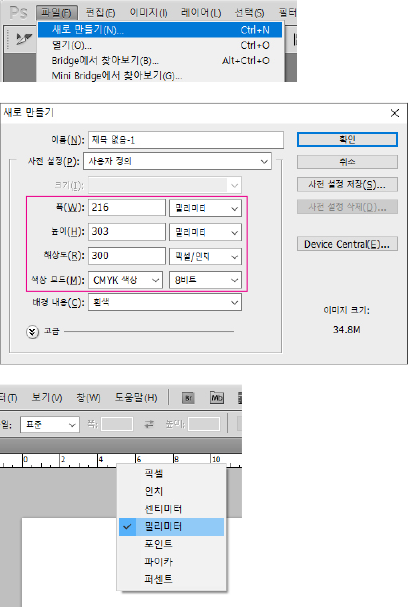
Create a new document and set the size for your print product. Resolution must be 300 pixels/inch or higher, and color mode must be CMYK. Low resolution source files cannot be improved by increasing resolution settings. If your work is low resolution, you must start over with high resolution files.
File → New (Ctrl+N)
Width: 216mm, Height: 303mm | Resolution: 300 Pixels/Inch | Color Mode: CMYK Color, 8 bit | Background Contents: White
Right-click ruler → Millimeters (or Edit → Preferences → Units & Rulers)
Document Size
HENEX
AI Print Consultant

Amount Due

Calculating...

PLABER

  • Company : PLABER Co., Ltd., Customer Service : +82-2-6677-7332
  • Address : 70 Dusan-ro, Geumcheon-gu, Seoul 08595, Korea
  • CEO : Eun-Sun Ha
  • Business No. : 337-86-03597
  • Sales License : 신청 중
  • Privacy Officer : Eun-Sun Ha, Email : cs@plaber.net

Copyrightⓒ2021 (C)PLABER All Rights Reserved.

HENEX - AI Print Consultant
Hello! I'm HENEX, your AI print consultant. 👋
Ask me about quotes, product specs, order tracking, and more.

💡 Conversations are used for AI learning and service improvement.
⚠️ Do not enter personal info (email, phone, address, name, ID, card number, etc.). It may be sent to AI.
🏷️ Sticker/Label
📄 Flat Print
💼 Cards/Coupons
✉️ Envelope/Package
📘 Books/Catalogs
🖼️ Large Format
📦 Order/Inquiry
⚠️ Do not enter personal info (name, phone, email, address, etc.).